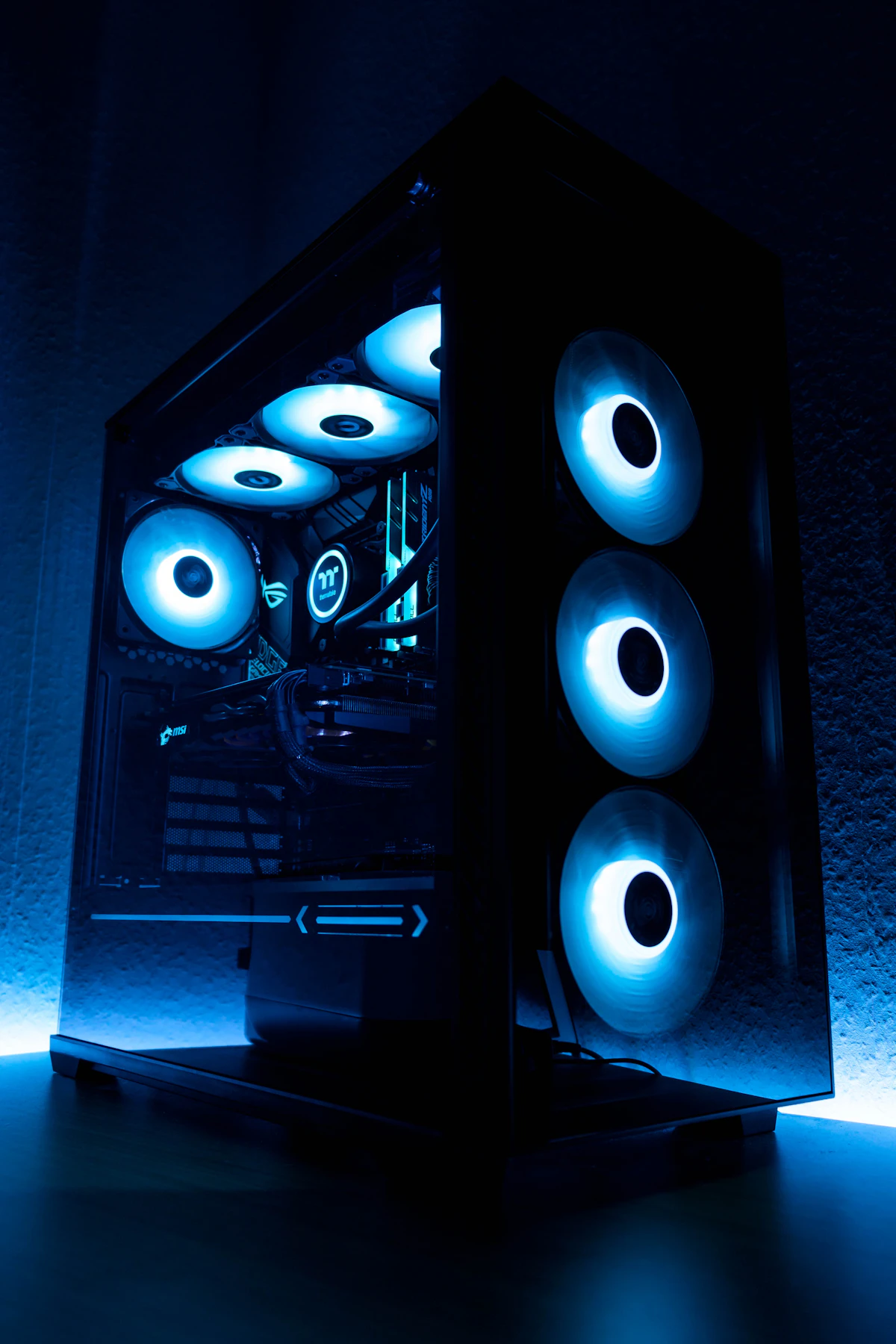
Experiencing sudden, unprompted PC restarts or immediate black-screen shutoffs without a Blue Screen of Death (BSOD) is one of the most frustrating hardware anomalies on Windows 11. When investigating Windows Event Viewer under the System log, you will inevitably find a Critical entry: 'Kernel-Power Event ID 41 (Task Category 63)'. When BugcheckCode reports '0', Windows did not crash due to an operating system fault—the machine lost electrical power or experienced an unrecoverable hardware freeze before the kernel could log an error dump. Below is our complete hardware and configuration troubleshooting guide.
Deconstructing Event ID 41: Why BugcheckCode 0 Matters
Event ID 41 states: "The system has rebooted without cleanly shutting down first." Clicking the Details tab reveals the BugcheckCode parameter:
- BugcheckCode 0: Represents raw power interruption. The motherboard power-good signal dropped, triggering instant hardware reset before Windows could execute a crash dump routine.
- BugcheckCode Non-Zero: Indicates that a traditional blue screen error occurred (such as memory corruption or driver crash), but the machine automatically rebooted before the crash screen could be observed.
| Root Cause | Trigger Conditions | Recommended Resolution | Hardware Impact |
|---|---|---|---|
| PSU Transient Power Spike | Restarts during game loading or intense GPU ray tracing | Verify ATX 3.1 PSU rating, reseat 12V-2x6 cable, use separate PCIe rails | High (PSU/GPU) |
| Fast Startup Hybrid State Corruption | Random reboot after waking from sleep or initial power-on | Disable Windows Fast Startup in Control Panel | Zero Risk (Software) |
| RAM XMP/EXPO Voltage Instability | Crashes under combined CPU + Memory load (Blender, Cinebench) | Slightly increase SoC/VDDQ voltage (+0.03V) or lower speed by 200MT/s | Moderate |
| CPU C-State Voltage Drop | Reboots while idle, browsing web, or watching YouTube | Change 'Power Supply Idle Control' to 'Typical Current Idle' in BIOS | Safe |
Fix 1: Disable Windows Fast Startup
Fast Startup mixes standard shutdown with hibernation. Over time, cached kernel states corrupt power dispatch routines, triggering sudden power cycling:
- Open Win + R, type
control, and press Enter to launch Control Panel. - Navigate to Hardware and Sound → Power Options.
- Click Choose what the power buttons do in the left sidebar.
- Click Change settings that are currently unavailable at the top.
- Uncheck Turn on fast startup (recommended) and click Save changes.
Fix 2: Diagnose Power Supply Transients & PCIe Daisy Chaining
Modern graphics cards (such as the RTX 4080, RTX 4090, RX 7900 XTX, and RTX 50-series) produce millisecond power transients up to double their sustained TDP. When a power supply's Over Current Protection (OCP) detects a momentary spike, it shuts down instantly:
- Eliminate Daisy-Chained Cables: Always power high-draw GPUs with individual, discrete 8-pin PCIe cables originating from separate ports on your PSU. Never use a single split pigtail cable to power dual 8-pin inputs.
- Check 12V-2x6 Connector Seating: On 16-pin power connections, verify that the connector is pushed completely flush with zero gap between the connector housing and the graphics card header. A loose pin connection induces micro-arcing and immediate shutdown.
Fix 3: Adjust BIOS Low-Power C-States (Idle Crash Fix)
If your system mysteriously reboots when you are not gaming—such as leaving the PC idle or reading a webpage—the motherboard is dropping processor voltage too low during deep sleep C-states:
- Restart your PC and press Del or F2 to enter UEFI BIOS.
- Navigate to Advanced CPU Configuration or AMD CBS.
- Locate Power Supply Idle Control and switch it from Auto / Low Current Idle to Typical Current Idle.
- On Intel systems, locate CPU C-States and test limiting max C-state to C6 rather than C10. Save changes and reboot.
Fix 4: Disable Automatic Restart to Reveal Hidden BSODs
If the crash is caused by a rapid kernel fault rather than a pure electrical cutoff, forcing Windows to display the blue screen reveals the true culprit:
- Press Win + R, type
sysdm.cpl, and press Enter. - Select the Advanced tab and click Settings under Startup and Recovery.
- Under the System failure header, uncheck Automatically restart.
- Ensure Write an event to the system log is checked and set Write debugging information to Small memory dump (256 KB).
- Click OK. On the next occurrence, Windows will freeze on the actual error screen, giving you the exact driver or code responsible.
Frequently Asked Questions
Can faulty surge protectors cause Event ID 41?
Yes. Worn power strips or low-rated uninterruptible power supplies (UPS) that cannot support sudden peak GPU draw will trip internally, cutting power to the PC instantly.
How can I tell if my power supply is dying?
A failing power supply typically triggers shutdowns during 3D gaming or rendering benchmarks (like FurMark or 3DMark Time Spy) when power draw spikes, but runs stably under basic desktop desktop loads.
Does XMP / EXPO memory overclocking cause Event ID 41?
Yes. Subtle memory instability can crash the CPU memory controller so abruptly that Windows cannot generate an error dump. Running MemTest86 for four clean passes ensures memory timings are fully stable.
💬 Reader Discussion & Feedback 0