Decoding the Dreaded Kernel-Power Event 41 (63) Error
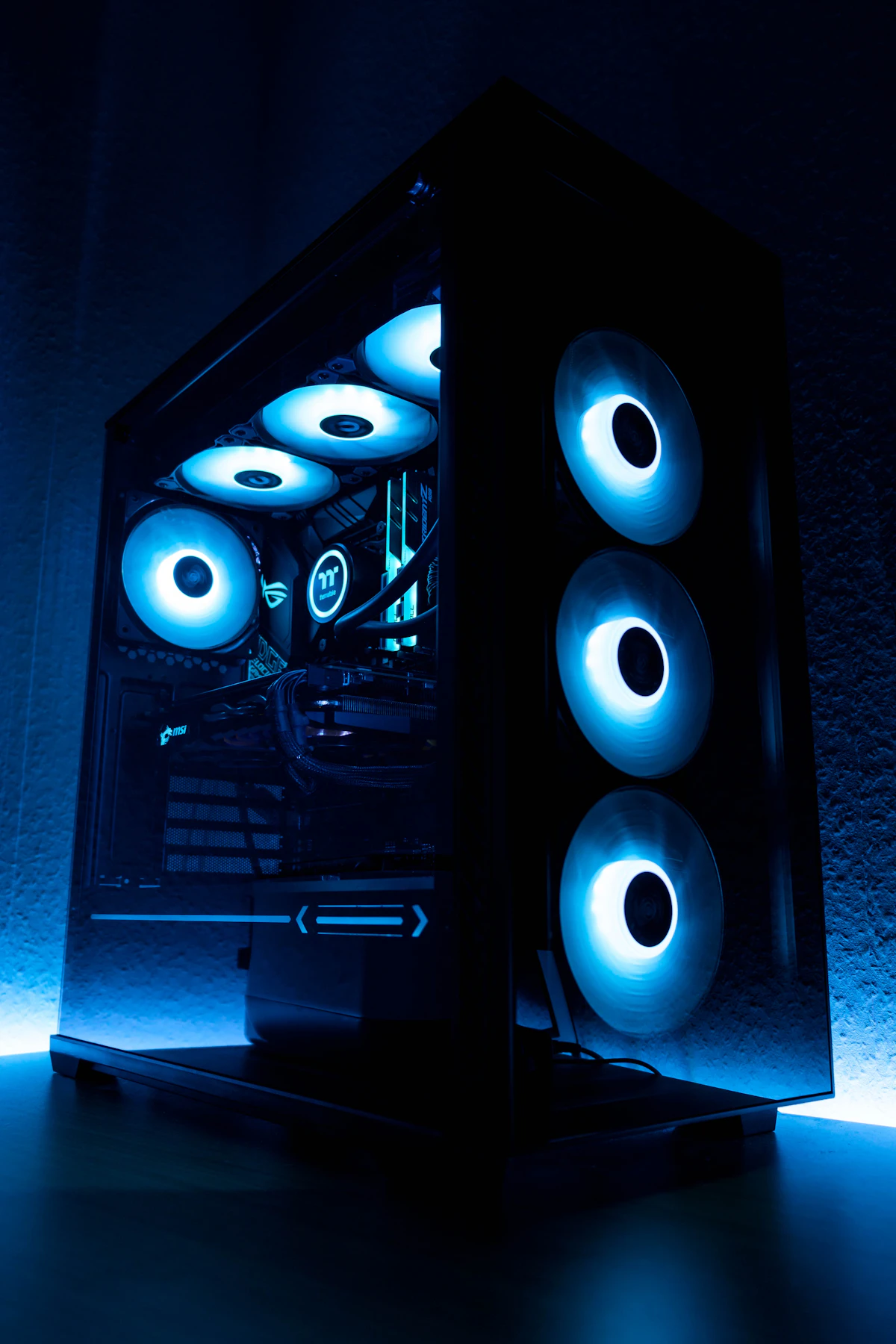
Few computer anomalies are as infuriating to diagnose as a desktop computer or gaming workstation that randomly reboots in the middle of a workload or gaming session. There is no stutter, no warning prompt, and frequently no Blue Screen of Death (BSOD)—the screen simply goes black, fans spin down or pulse, and the machine re-initializes from POST. When you launch Windows Event Viewer and inspect the Critical logs, you are greeted with the identical recurring entry:
Source: Microsoft-Windows-Kernel-Power
Event ID: 41
Task Category: (63)
Description: The system has rebooted without cleanly shutting down first. This event could be caused if the system stopped responding, crashed, or lost power unexpectedly.
Because Event 41 is a generic flag logged by the kernel upon booting to record that the previous session terminated abnormally, the error itself is a symptom rather than the root disease. Resolving it requires analyzing the event's raw XML parameters, isolating power delivery hardware, and stabilizing system memory and voltage profiles.
| BugcheckCode Value | Diagnostic Classification | Primary Root Cause | Verification Action |
|---|---|---|---|
| 0x0 (Zero) | Hard Electrical Cutoff | PSU 12V rail droop, tripped OCP, wall power drop | Inspect PSU rails & disable Fast Startup |
| 0x124 (WHEA) | Hardware Machine Check | CPU Vcore droop, unstable Curve Optimizer, PCIe drop | Reset BIOS overclock & update microcode |
| 0x9F (DRIVER_POWER) | Power State Transition | Driver failed to transition between D0 and D3 states | Update chipset & PCIe storage drivers |
| 0x3B / 0x1E | System Memory Exception | DDR5 XMP/EXPO memory corruption or timing error | Run MemTest86 & bump SoC voltage +0.02V |
Step 1: Check the BugcheckCode in Event Viewer Details
To pinpoint whether your computer suffered an electrical power loss or an unhandled driver crash, inspect the event's raw parameters:
- Press Win + X and open Event Viewer.
- Navigate to Windows Logs > System.
- Click Filter Current Log in the right-hand panel, check Critical, and select Event ID 41.
- Select the most recent Event 41 entry, navigate to the Details tab, and switch to XML View.
- Look for
<Data Name="BugcheckCode">.
If the BugcheckCode is 0, the motherboard experienced an instantaneous loss of electrical power before the operating system could write a crash dump file. This isolates the fault to hardware power delivery: power supplies, 12V-2x6 cable seating, wall voltage brownouts, or unstable BIOS power states. If the code is non-zero, Windows crashed via BSOD but rebooted too quickly for your display to catch the stop screen.
Step 2: Disable Fast Startup and Hybrid Sleep
Windows 11 Fast Startup writes kernel and hardware driver states into hiberfil.sys when you shut down. If the ACPI power state transition fails during wake or boot, Windows registers an unexpected dirty shutdown and flags an Event 41 error:
- Press Win + R, type
powercfg.cpl, and press Enter to launch Power Options. - In the left panel, click Choose what the power buttons do.
- Click the administrative link: Change settings that are currently unavailable.
- Scroll down to Shutdown settings and uncheck Turn on fast startup (recommended).
- Click Save changes.
To verify that the hibernation cache is fully purged, open administrative Command Prompt and execute powercfg -h off.
Step 3: Diagnose Power Supply (PSU) Transient Voltage Spikes
Modern graphics cards (such as the NVIDIA RTX 40/50 series and AMD Radeon RX 7000/8000 series) exhibit severe millisecond-level power transients, occasionally spiking power draw to 1.5x to 2x their rated thermal design power (TDP). On aging, multi-rail, or budget power supplies, these millisecond spikes trip the unit's Over-Current Protection (OCP) or Over-Power Protection (OPP), instantly shutting down the system:
- PCIe Cable Routing: Never use daisy-chained "pigtail" PCIe 8-pin power cables on high-draw GPUs. Ensure every 8-pin power socket on your card or 12V-2x6 adapter is fed by a dedicated, independent cable directly from the PSU.
- 12V-2x6 Seating: If using a 16-pin 12VHPWR / 12V-2x6 cable, ensure the connector is fully inserted until the retaining clip clicks flush against the socket. Incomplete insertion triggers sense pin disconnects, causing the power supply to cut power immediately.
- 12V Rail Monitoring: Download HWiNFO64, launch in Sensors-only mode, and monitor the
+12Vmotherboard reading under load. If the 12V rail sags below 11.40V under gaming or stress testing, your power supply is degraded and must be replaced with an ATX 3.0 / ATX 3.1 rated unit.
Step 4: Stabilize RAM XMP / EXPO Overclocks
Memory instability is a massive hidden cause of BugcheckCode 0 and WHEA-related reboots. Enabling DDR5-6000 or DDR5-6400 profiles via Intel XMP or AMD EXPO pushes the CPU's integrated memory controller (IMC) to its absolute limit:
- Reboot your computer and enter your motherboard UEFI BIOS (typically via Del or F2).
- Locate your memory profile setting (XMP, EXPO, or DOCP) and toggle it to Disabled to run your RAM at JEDEC base speeds (e.g., DDR5-4800 or DDR4-2133).
- Test your system under normal workloads. If the random reboots cease, your memory profile was unstable.
- To keep higher speeds without crashing, re-enable XMP/EXPO, back the frequency down by one step (e.g., from DDR5-6000 to DDR5-5600), or slightly increase CPU VDDQ / SoC voltage by +0.020V to +0.030V to provide stable signal integrity.
Step 5: Disable C-States and Low-Power Idle in BIOS
When modern processors enter deep low-power sleep states (C6/C7/C8) during idle periods or light web browsing, the motherboard voltage regulator modules (VRMs) drop CPU core voltage to fractional levels. If the CPU voltage drops slightly too far before the clock frequency steps down, the processor freezes and the motherboard reboots:
- In UEFI BIOS, navigate to Advanced CPU Configuration.
- Locate Global C-State Control (or Package C-State) and set it to Disabled.
- On AMD AM5 / AM4 platforms, locate Power Supply Idle Control and switch it from Low Current Idle to Typical Current Idle.
- Save changes and exit BIOS (F10).
By preventing rapid voltage collapse during idle-to-load transitions and ensuring robust power delivery, you eliminate the hardware conditions that generate Kernel-Power 41 crashes.
💬 Reader Discussion & Feedback 0