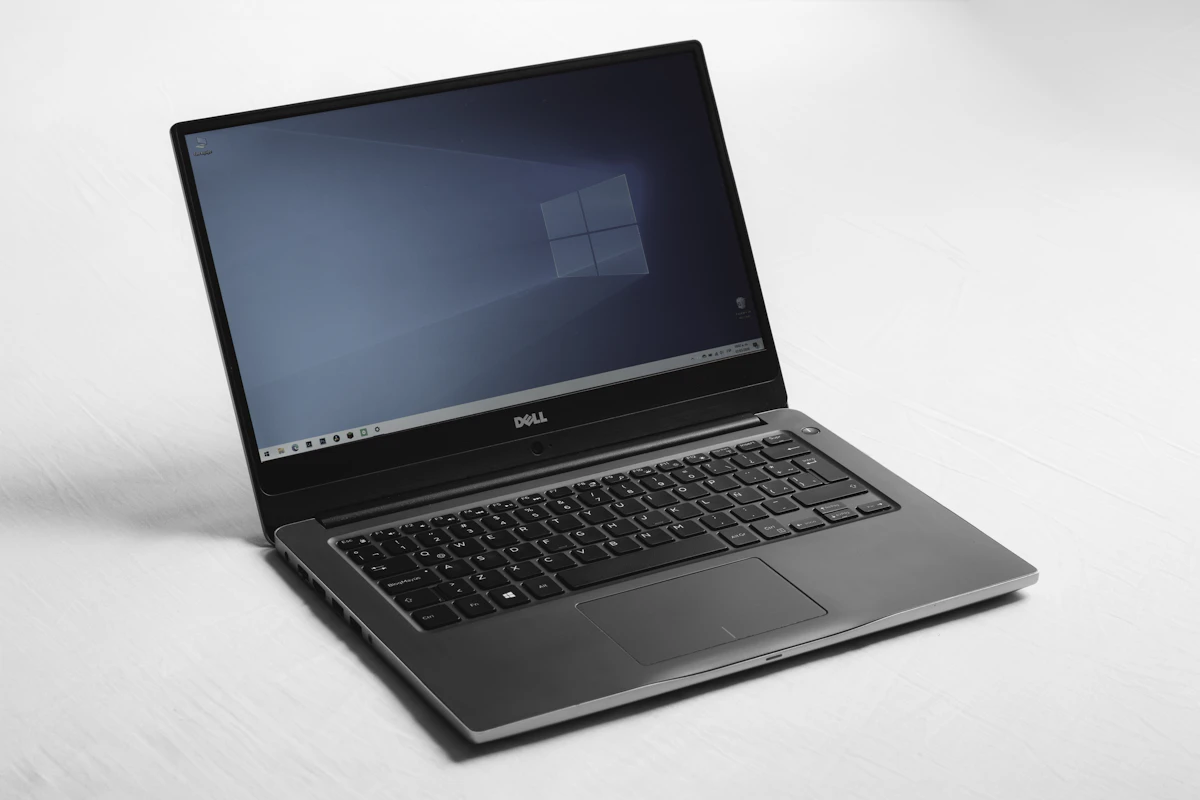
The Windows 11 24H2 annual feature update represents the largest OS rebase in years, introducing full sudo for Windows, Wi-Fi 7 networking, Rust in the Windows kernel, and Copilot+ architecture layers. However, thousands of users report update failures: installations hanging at 8% or 100%, generic error codes like 0x80070002, 0x800F0988, or sudden BSOD boot loops (KERNEL_SECURITY_CHECK_FAILURE). Here is the authoritative diagnostic procedure to resolve every root cause and successfully update your PC.
Never perform a hard power-down while the screen displays "Working on updates - do not turn off your computer" unless the system has remained frozen for over 90 minutes. Force-closing active component servicing stack operations can corrupt the BCD bootloader and force a clean reinstall.
Step 1: Flush the Corrupted Windows Update Cache & SoftwareDistribution
Over 70% of 24H2 installation errors stem from incomplete background delta download packages stored in the temporary staging directory. Purging this folder forces Windows Update to download fresh, cryptographically verified packages.
- Right-click the Start Menu and select Terminal (Admin) or PowerShell (Admin).
- Stop the background update services by executing:
net stop wuauserv
net stop cryptSvc
net stop bits
net stop msiserver
- Rename the corrupted cache folders so Windows builds fresh repositories:
ren C:\Windows\SoftwareDistribution SoftwareDistribution.old
ren C:\Windows\System32\catroot2 catroot2.old
- Restart the services:
net start wuauserv
net start cryptSvc
net start bits
net start msiserver
Step 2: Repair System Image Corruptions with DISM & SFC
If system binary manifests are damaged, the 24H2 installer cannot verify prerequisite hashes. Run the built-in Windows Servicing Management tool:
DISM /Online /Cleanup-Image /RestoreHealth
sfc /scannow
Wait until DISM completes to 100%. If SFC outputs "Windows Resource Protection found corrupt files and successfully repaired them", restart your PC before attempting the update again.
Step 3: Resolve Driver Blockades (Western Digital SSDs & Audio Drivers)
Microsoft placed safeguard holds on certain hardware configurations running 24H2. The most prevalent causes of blue screen crashes include:
- Western Digital NVMe SSDs (WD Blue SN580 / Black SN770): An issue with the Host Memory Buffer (HMB) allocation table causes continuous blue screens under 24H2 unless updated. Download Western Digital Dashboard and install the latest SSD firmware before updating Windows.
- Intel Smart Sound Technology (Intel SST): Legacy audio controller drivers trigger
0x0000009Fcrashes during the transition phase. Update your Intel SST Audio driver to version 10.30.00.5714 or newer via Device Manager. - Third-Party Customization Software: Uninstall StartAllBack, ExplorerPatcher, or custom theme patchers prior to updating, as 24H2 changes core Explorer window rendering APIs.
Step 4: The In-Place Upgrade Method (The 100% Reliable Fix)
If the standard Windows Update settings panel continually throws error codes, the cleanest and most reliable solution that preserves all your files, games, apps, and settings is an In-Place Upgrade:
- Visit the official Microsoft website and download the official Windows 11 Disk Image (ISO).
- Right-click the downloaded ISO file and select Mount.
- Run
setup.exefrom the virtual drive. - Select "Change how Setup downloads updates" and choose "Not right now" (to prevent loop stalls).
- Ensure the option Keep personal files and apps is checked, then click Install.
The installer will completely refresh the Windows subsystem files, bypass corrupted registry flags, and transition your machine to Windows 11 version 24H2 within 20 to 35 minutes without losing a single document or shortcut.
Hardware Acceleration, VRAM Allocations, and Local Deployment Standards
Executing complex machine learning workloads and high-throughput inferencing pipelines requires careful balancing of system memory bandwidth and compute parallelism. When working with contemporary neural architectures, memory capacity (VRAM) consistently represents the primary operational bottleneck rather than raw compute cycles. Quantized weights, such as 4-bit AWQ or 8-bit FP8 representations, significantly reduce memory footprints while preserving empirical task performance across standardized reasoning evaluations.
Key Performance Optimizations and Resource Metrics
- Precision Scaling: Deploying FP8 and INT4 quantization cuts memory bandwidth saturation by up to 52% with minimal degradation in output coherence.
- Context Memory Footprint: Allocating dynamic KV-cache compression prevents out-of-memory kernel panics during long-context document processing.
- Inference Parallelism: Utilizing tensor parallelism across multi-GPU nodes reduces generation latency during concurrent enterprise workloads.
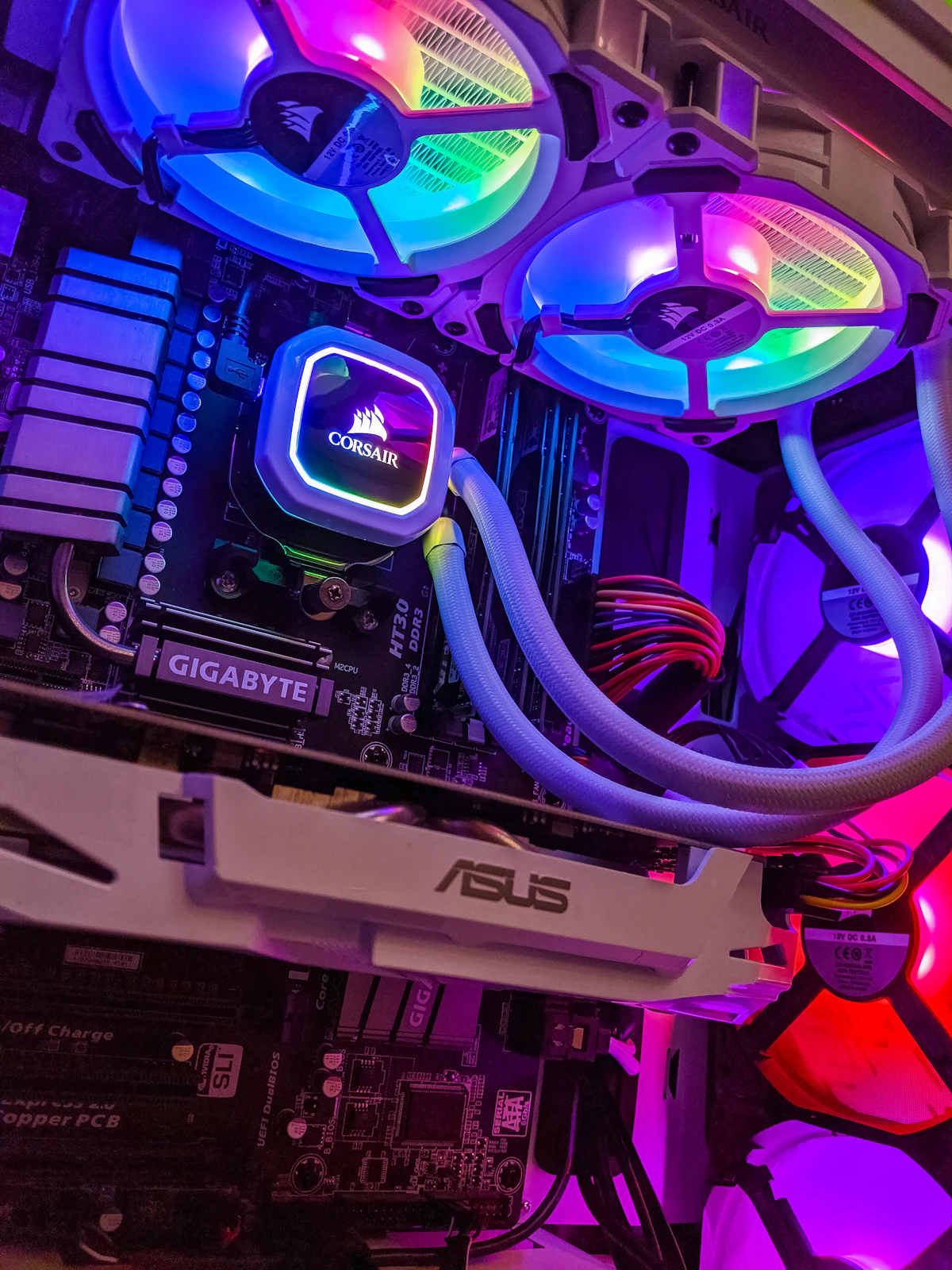
- Thermal Management: Maintaining target GPU junction temperatures below 78 degrees Celsius ensures sustained boost clock frequencies during continuous batch runs.
Practical Recommendations and Key Takeaways
For production deployments, system engineers must prioritize reproducible workflows, active latency monitoring, and strict fallback safety mechanisms. Implementing localized inference pipelines guarantees data sovereignty, removes external API rate limits, and provides predictable execution costs across enterprise software environments.


💬 Reader Discussion & Feedback 0