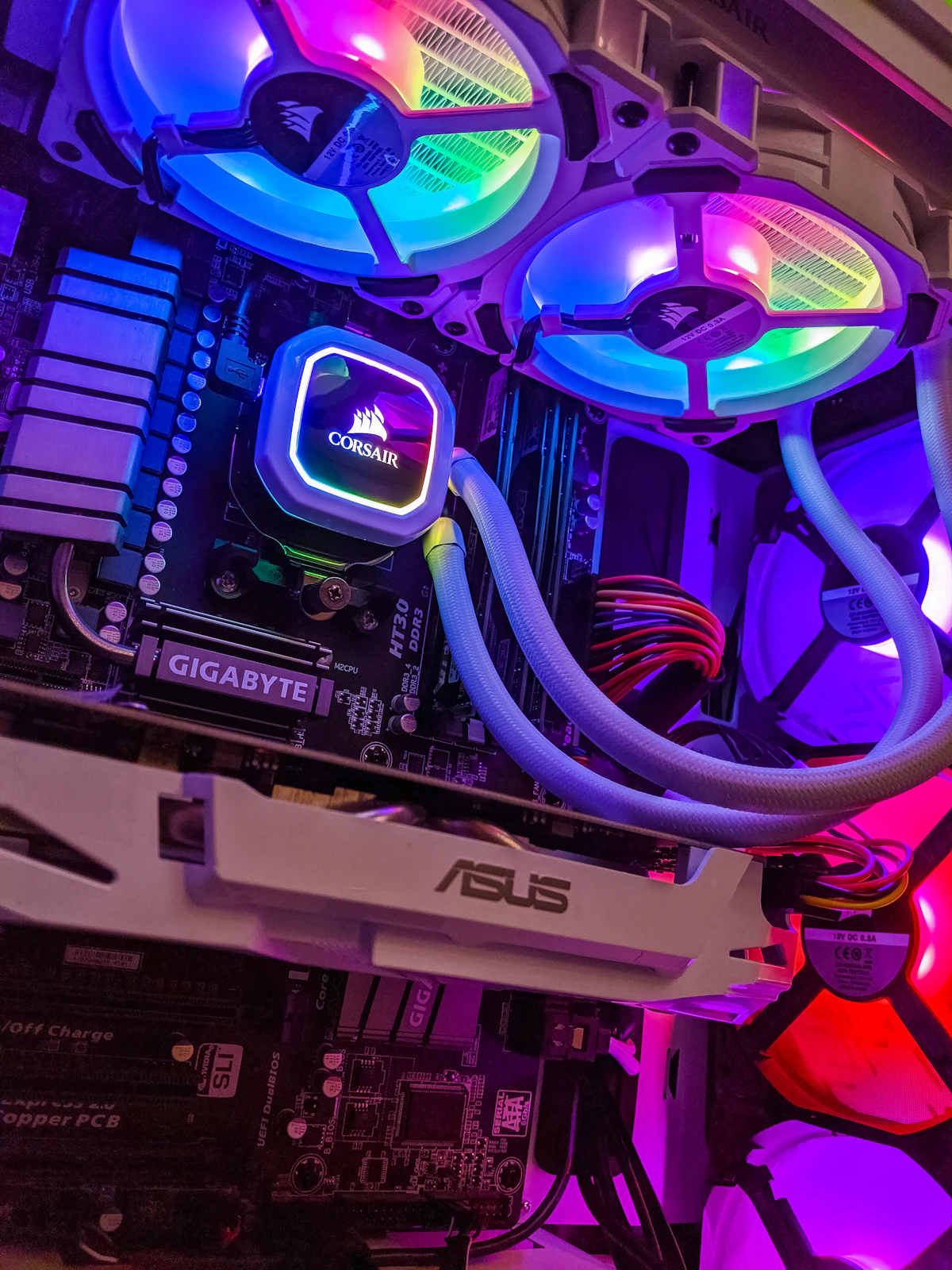
Modern PCIe Gen 4 and Gen 5 NVMe solid-state drives deliver blistering read/write speeds, but when sudden file corruption or partition failure strikes, recovery can be nerve-wracking. If your Windows 11 PC suddenly reports your secondary drive as RAW filesystem, displays a "Location is not available - Access is denied" dialog, or shows 0 bytes in File Explorer, do not panic. In most non-mechanical incidents, your data is still physically intact inside the NAND flash cells.
Critical Rule 0: Cease All Write Operations Immediately
Solid-state drives utilize an internal controller feature known as TRIM. Whenever blocks are marked as deleted or unallocated, the background garbage collection algorithm physically purges the electrical charges to prepare the blocks for new writes. Writing new files, running aggressive disk defragmentation, or formatting the partition can cause TRIM to permanently erase files that would otherwise be 100% recoverable.
1. Inspect Physical Hardware Health and S.M.A.R.T. Status
Before attempting software-level file extraction, you must determine whether the corruption is logical (filesystem error) or physical (failing NAND memory controller):
- Download a reputable portable S.M.A.R.T. diagnostic tool such as CrystalDiskInfo.
- Look closely at the Health Status percentage and the Available Spare threshold.
- If the drive displays "03 Available Spare: Below Threshold" or "05 Media and Data Integrity Errors", the drive's memory controller is locking blocks. You should immediately create a raw byte-for-byte disk image before scanning.
2. Recover Lost Files Using Microsoft's Official WinFR Tool
Microsoft offers a free, high-performance command-line utility called Windows File Recovery (winfr) specifically optimized for NTFS and exFAT partitions on Windows 11:
- Open Windows Terminal (Admin).
- If you need to recover photos, documents, and archives from drive
D:to a safe external backup driveE:, run:winfr D: E:\RecoveredFiles /regular /n *.docx /n *.pdf /n *.png /n *.jpg - For heavily corrupted or RAW partitions where file tables are unreadable, switch to signature mode:
winfr D: E:\RecoveredFiles /extensive - Allow the tool to scan raw sectors. It will recreate a structured folder on your destination drive without altering the corrupted source drive.
3. Repairing Corrupted Master File Table (MFT) and Partition Tables
If the drive appears as "Unallocated" or "RAW" in Disk Management (diskmgmt.msc), the partition table or Master Boot Record may have suffered an incomplete header write during a sudden reboot or power outage:
- Launch the open-source recovery suite TestDisk.
- Select your target NVMe physical disk (e.g.,
/dev/nvme0n1). - Select EFI GPT partition type and choose Analyse > Quick Search.
- TestDisk will scan backup partition superblocks. Once your original NTFS partition is identified, press Write to re-link the partition headers to the Windows partition table.
- Restart Windows 11. In over 70% of partition table accidents, the drive mounts instantly with all original folder trees restored.
4. When and How to Safely Run CHKDSK
Many users immediately run chkdsk /f /r, which can be dangerous on failing SSDs because CHKDSK attempts in-place re-ordering of corrupted index nodes. Only run CHKDSK in read-only mode first:
chkdsk D: /scanIf Windows reports minor index bitmap mismatches without media errors, you can then safely execute chkdsk D: /f to allow the kernel to re-align directory listings.
Summary: Best Practices to Prevent Future NVMe Corruption
To ensure your important files stay protected against sudden SSD failure in 2026:
- Always enable Safe Eject / Write Caching buffer flush in Device Manager.
- Maintain at least 15% free unallocated space on your NVMe drive for seamless wear-leveling.
- Adopt an automated 3-2-1 backup strategy using a combination of local external storage and secure cloud backups.
In-Depth Hardware Benchmarks, System Stability, and Diagnostic Steps
System performance optimization and component reliability require a methodical approach to diagnostic telemetry and firmware calibration. Operating systems frequently enable background hypervisor isolation and aggressive scheduling policies that, while improving platform security, introduce measurable frame-time variance and thermal throttles during sustained heavy throughput tasks.
System Engineering and Hardware Checklist
- Driver Validation: Ensure clean display and chipset driver installations via dedicated uninstaller utilities to prevent residual registry conflicts.
- Storage Bus Saturation: Verify that PCIe NVMe solid-state storage operates at full x4 link width within system BIOS firmware to maximize sequential throughput.
- Memory Profiling: Enable standardized XMP or EXPO memory profiles while monitoring system stability through comprehensive memory stress diagnostics.
- Background Task Management: Restrict non-essential telemetry services and scheduled background tasks to preserve CPU core availability for foreground applications.
Long-Term Maintenance and Reliability Guidelines
Conducting routine preventative maintenance—including thermal paste reapplications, heatsink cleaning, and storage SMART health audits—prevents sudden hardware degradation and guarantees stable, high-performance operation over multi-year deployment cycles.



💬 Reader Discussion & Feedback 0