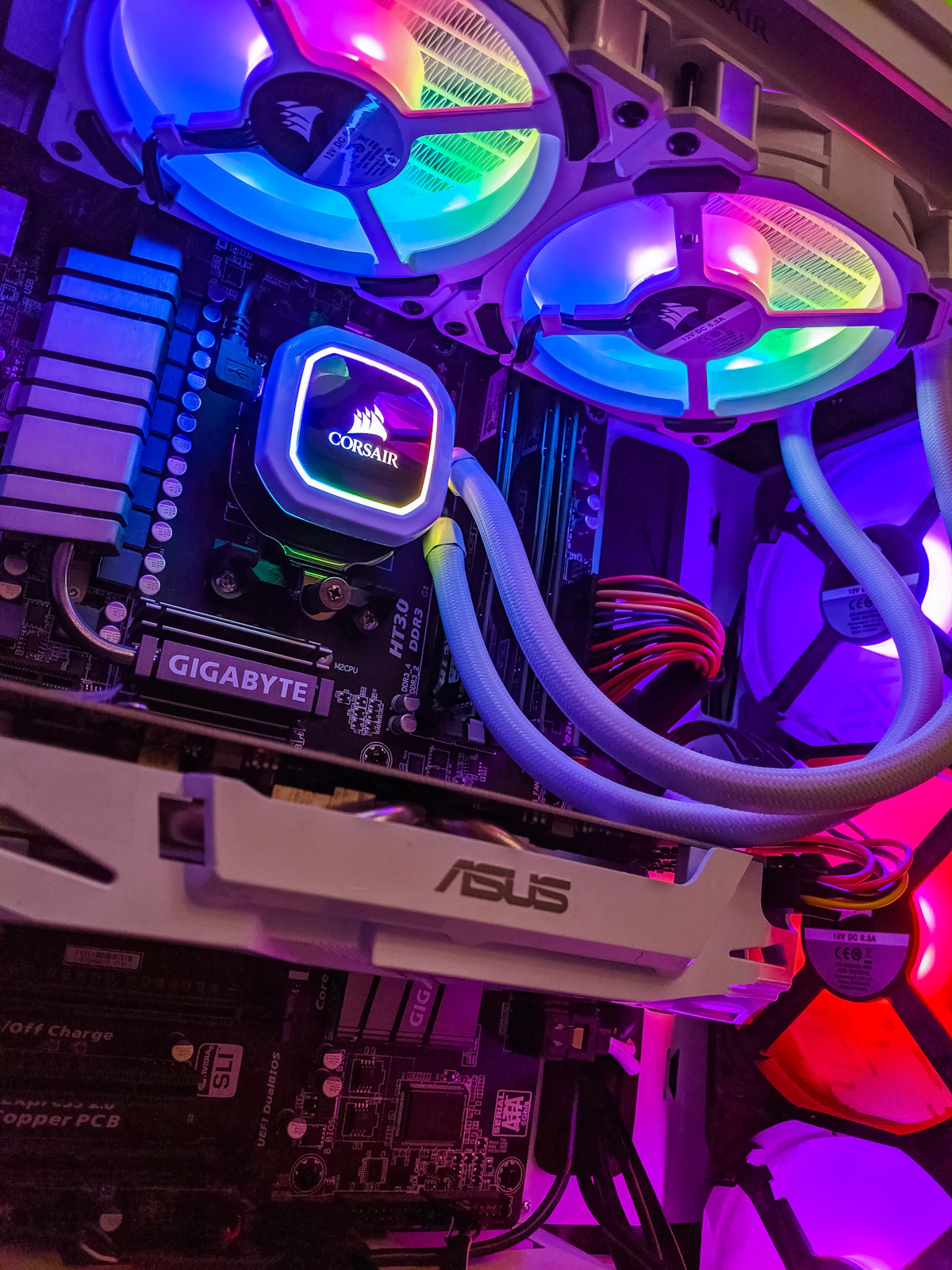
Modern PCIe Gen 4 and Gen 5 NVMe solid-state drives deliver blistering read/write speeds, but when sudden file corruption or partition failure strikes, recovery can be nerve-wracking. If your Windows 11 PC suddenly reports your secondary drive as RAW filesystem, displays a "Location is not available - Access is denied" dialog, or shows 0 bytes in File Explorer, do not panic. In most non-mechanical incidents, your data is still physically intact inside the NAND flash cells.
Critical Rule 0: Cease All Write Operations Immediately
Solid-state drives utilize an internal controller feature known as TRIM. Whenever blocks are marked as deleted or unallocated, the background garbage collection algorithm physically purges the electrical charges to prepare the blocks for new writes. Writing new files, running aggressive disk defragmentation, or formatting the partition can cause TRIM to permanently erase files that would otherwise be 100% recoverable.
1. Inspect Physical Hardware Health and S.M.A.R.T. Status
Before attempting software-level file extraction, you must determine whether the corruption is logical (filesystem error) or physical (failing NAND memory controller):
- Download a reputable portable S.M.A.R.T. diagnostic tool such as CrystalDiskInfo.
- Look closely at the Health Status percentage and the Available Spare threshold.
- If the drive displays "03 Available Spare: Below Threshold" or "05 Media and Data Integrity Errors", the drive's memory controller is locking blocks. You should immediately create a raw byte-for-byte disk image before scanning.
2. Recover Lost Files Using Microsoft's Official WinFR Tool
Microsoft offers a free, high-performance command-line utility called Windows File Recovery (winfr) specifically optimized for NTFS and exFAT partitions on Windows 11:
- Open Windows Terminal (Admin).
- If you need to recover photos, documents, and archives from drive
D:to a safe external backup driveE:, run:winfr D: E:\RecoveredFiles /regular /n *.docx /n *.pdf /n *.png /n *.jpg - For heavily corrupted or RAW partitions where file tables are unreadable, switch to signature mode:
winfr D: E:\RecoveredFiles /extensive - Allow the tool to scan raw sectors. It will recreate a structured folder on your destination drive without altering the corrupted source drive.
3. Repairing Corrupted Master File Table (MFT) and Partition Tables
If the drive appears as "Unallocated" or "RAW" in Disk Management (diskmgmt.msc), the partition table or Master Boot Record may have suffered an incomplete header write during a sudden reboot or power outage:
- Launch the open-source recovery suite TestDisk.
- Select your target NVMe physical disk (e.g.,
/dev/nvme0n1). - Select EFI GPT partition type and choose Analyse > Quick Search.
- TestDisk will scan backup partition superblocks. Once your original NTFS partition is identified, press Write to re-link the partition headers to the Windows partition table.
- Restart Windows 11. In over 70% of partition table accidents, the drive mounts instantly with all original folder trees restored.
4. When and How to Safely Run CHKDSK
Many users immediately run chkdsk /f /r, which can be dangerous on failing SSDs because CHKDSK attempts in-place re-ordering of corrupted index nodes. Only run CHKDSK in read-only mode first:
chkdsk D: /scanIf Windows reports minor index bitmap mismatches without media errors, you can then safely execute chkdsk D: /f to allow the kernel to re-align directory listings.
Summary: Best Practices to Prevent Future NVMe Corruption
To ensure your important files stay protected against sudden SSD failure in 2026:
- Always enable Safe Eject / Write Caching buffer flush in Device Manager.
- Maintain at least 15% free unallocated space on your NVMe drive for seamless wear-leveling.
- Adopt an automated 3-2-1 backup strategy using a combination of local external storage and secure cloud backups.
NVMe Read-Only Lock State & RAW Partition Reconstruction
When an NVMe SSD's flash controller detects critical NAND block degradation, it locks the drive into a hardware Read-Only protection mode. When this occurs, do not attempt to write new data or format partitions. Instead, use sector-by-sector cloning tools (like GNU `ddrescue`) to create an exact forensic disk image before attempting filesystem repairs.
- ⚡ LM Studio Tutorial 2026: Download, Setup & Run Any AI Model Locally with GPU (Windows & Mac)
- ⚡ Best Budget Gaming PC Build 2026: $400, $600 & $900 Builds for 1080p & 1440p Gaming
- ⚡ Antimalware Service Executable High CPU & Memory Fix: Stop MsMpEng.exe Consuming 100% Resources in Windows 11
- ⚡ Best Budget 1440p Gaming GPUs in 2026: FPS Benchmarks, VRAM Sizing & Power Efficiency (Ranked)
Looking to replace a failing drive with high-end, reliable storage? Check our comprehensive guide to the best NVMe SSDs in 2026 across PCIe 4.0 and PCIe 5.0.
- ➔ Apple M4 Max Architecture: 546 GB/s Unified Memory, 40-Core GPU & Local AI LLM Benchmarks vs RTX 4090
- ➔ Best NVMe SSDs in 2026: PCIe 4.0 & 5.0 Drives for Gaming, AI & 4K Video Editing (Ranked)
- ➔ Eclypsium Exposes AI Hardware Firmware Exploit: How Attackers Tamper with Model Weights via DPU and BMC
- ➔ AMD Ryzen 7 9800X3D vs. Intel Core Ultra 9 285K: 45-Game Benchmark Battle, Latency & Architecture Deep Dive
Prevent Future NVMe Corruption & Kernel Crash Loops
File-system corruption frequently follows sudden power drops, BitLocker overhead, or storage driver BSODs. Audit these failure modes right after backing up your drive:
- Fix Kernel-Power Event ID 41 Unexpected Restarts — prevent dirty NTFS unmounts caused by sudden shutdowns.
- Windows 11 24H2 Software BitLocker vs Hardware Encryption Benchmarks — verify XTS-AES overhead is not stalling NVMe queues.
- Troubleshoot IRQL_NOT_LESS_OR_EQUAL Driver Faults — stop kernel memory corruption before NTFS metadata breaks.
- Fix Storage Timeout DPC_WATCHDOG_VIOLATION (0x00000133) — update firmware and AHCI/NVMe host controller drivers.



💬 Reader Discussion & Feedback 0